Send backups to OneDrive for Business
Choose your storage destination
 Local / NAS
 FTP
FTP
 Amazon S3
 S3-compatible storage
 Google Cloud Storage
 Wasabi
 Aruba Cloud
 Dropbox
 Google Drive
 OneDrive
 OneDrive for Business
 Azure Storage
 Box
Box
 Backblaze B2
Contabo and Internxt use the S3 Compatible - Custom setup. Use the endpoint and credentials supplied by your provider.
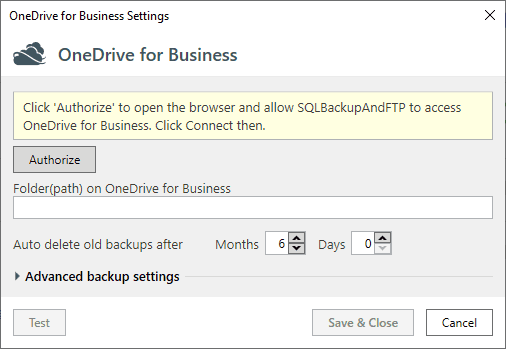
If you selected to send backups to OneDrive for Business — you will see this form.
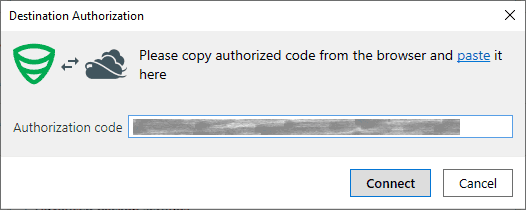
On the OneDrive for Business Settings form you’ll need to authorize SQLBackupAndFTP to access your OneDrive for Business. Click Authorize to open OneDrive for Business authorization page in your browser, sign in your to OneDrive for Business account and click at Allow. On the next page you will see the field with authorization code. Copy it to the clipboard.
After that return to SQLBackupAndFTP, paste the authorization code and click Connect.
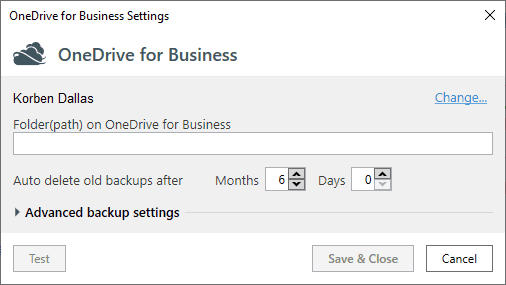
After you are authorized, you can enter the path to a backup folder. SQLBackupAndFTP will create the folder if it does not exist.